Calendar
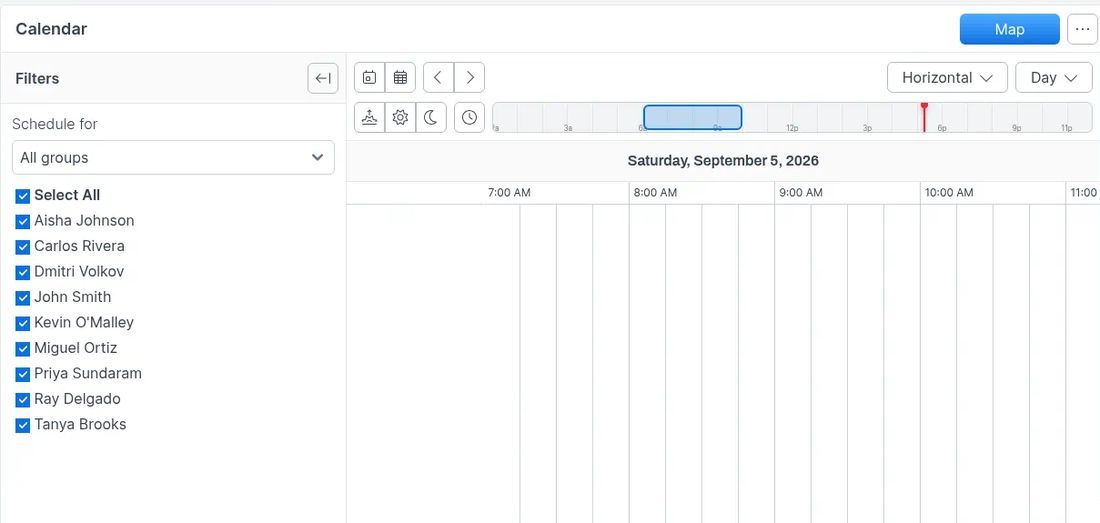
See your team's scheduled jobs and events on one grid, change the view, and reschedule by dragging.
Overview
The Calendar is your hub for viewing your team's schedule. Open it from the sidebar to see jobs and events by day, week, month, or weekly list, and filter which people appear on the grid.
To create a new event or schedule an existing job onto the calendar, see Scheduling Jobs or Events.
Before you begin
Prerequisites:
- The Calendar module is enabled (Settings > Modules).
- Your role includes permission to view the calendar (and to create or edit events if you need to make changes).
- At least one active user exists so schedules can appear under Schedule for.
Open Calendar and navigate
- Open Calendar from the sidebar.
- Use Today to jump to the current date.
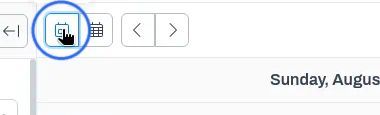
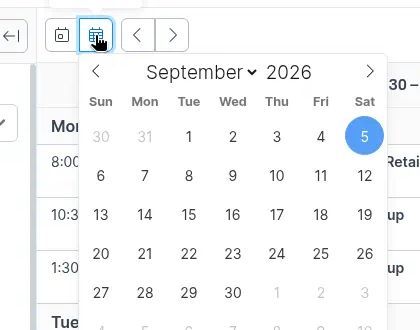
- Use Select date to open the calendar picker and jump to a specific day.
- Use the previous and next arrows to move one day, week, or period at a time (depending on the active view).
Choose a view
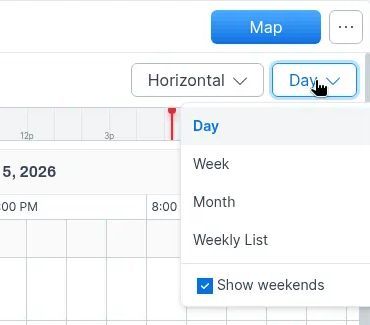
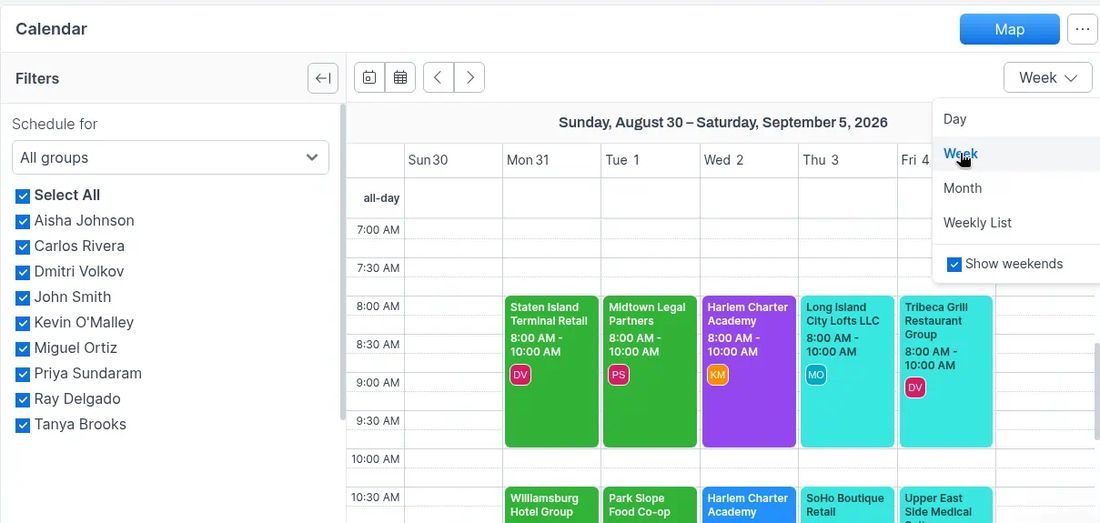
Open the view menu (for example Day or Week) and choose:
- Day — one day at a time
- Week — a full week grid
- Month — a month overview
- Weekly List — events listed by day for the week
Turn Show weekends on or off from the same menu.
Choose a layout
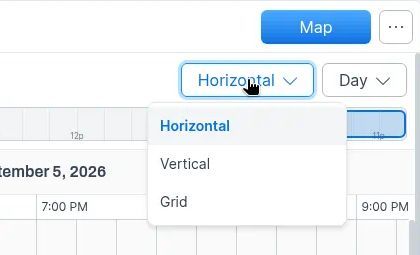
Open the layout menu and choose Horizontal, Vertical, or Grid. Layout options appear with Day (and similar timeline views) so you can arrange how people and time slots are shown.
Filter who you see
In the left Filters pane:
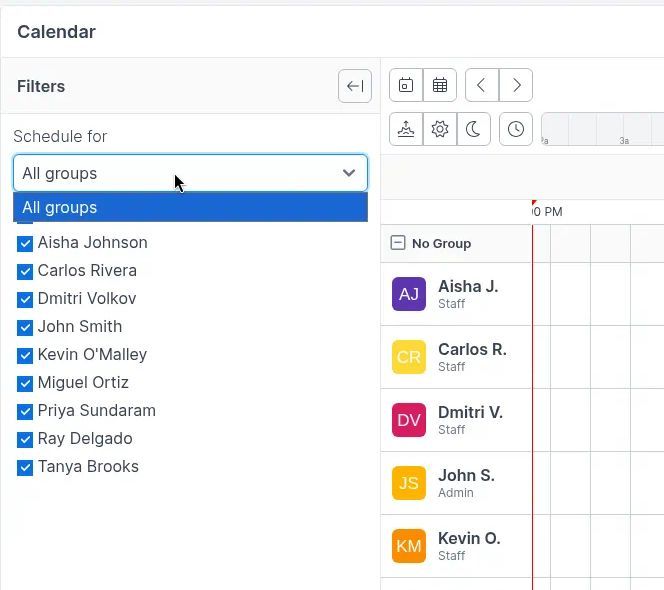
- Use Schedule for to choose All groups or a specific group.
- Use Select All or individual staff checkboxes to show or hide people on the calendar.
Open an existing job or event
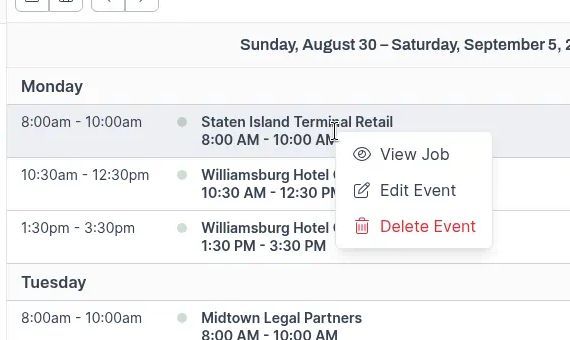
Click a scheduled item on the calendar. From the item menu you can:
- View Job — open the linked job
- Edit Event — change the event
- Delete Event — remove the event from the calendar
Map
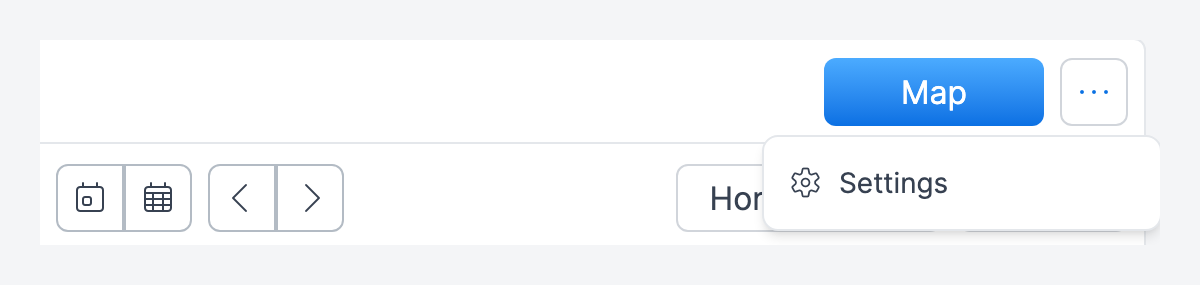
Use the blue Map button in the Calendar header when you want the map alongside your schedule.
Settings
Click the More options menu (⋯) next to Map and select Settings to open the calendar settings.
User Groups, used with Schedule for, are now managed under Team → Groups.
Event colors
Scheduled items on the calendar can use colors from the linked job's status (configured under job statuses in Settings). Standalone events use the calendar's default event styling.
Create events and schedule jobs
Creating a New Event or using Schedule Job from a calendar slot is covered in Scheduling Jobs or Events.
Troubleshooting
Was this helpful?
Still need help? Ask the team