Stock Levels
Track inventory quantities across multiple warehouse and vehicle locations, and set reorder points to avoid stockouts.
Overview
Stock levels show how many units of each Inventory-type item you have at each location. Forz tracks quantity per location through an inventory level record that links an item to a location. When quantities drop to or below the reorder point — or reach zero — Forz flags the item as low stock. Multi-location stock tracking requires the Advanced Inventory module.
Before You Begin
Prerequisites:
The Advanced Inventory module is enabled (Settings > Modules).
You have the Inventory Locations: View permission on your role.
At least one inventory location is active.
Items are created with type Inventory (Non Inventory and Service items do not track stock).
Viewing Stock Levels for an Item
Click Products & Services in the sidebar navigation.
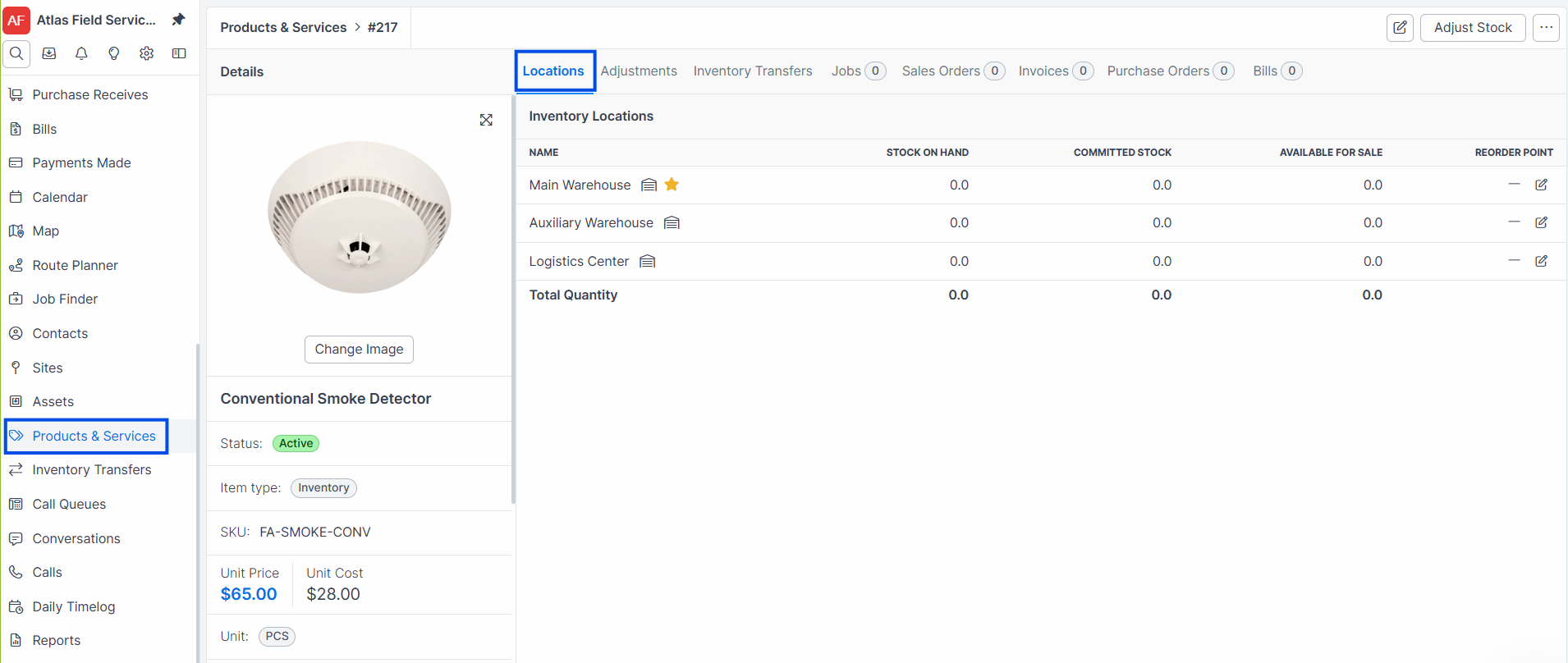
Click an Inventory-type item to open its detail view.
Click the Locations tab.
Expected result: A table lists every active inventory location, one row each, with four figures per location:
Stock on Hand — units physically at that location.
Committed Stock — units already promised to sales orders that have not been invoiced and to jobs that have no invoice yet.
Available for Sale — Stock on Hand minus Committed Stock minus anything still in transit to that location.
Reorder Point — the low-stock threshold for that location.
A total row at the bottom sums every location. A warehouse icon marks a fixed location, a truck icon marks a mobile one, and a star marks your primary location.
Note: The Locations tab only appears for Inventory-type items when the Advanced Inventory module is enabled. For accounts without Advanced Inventory, Forz tracks a single aggregate stock quantity.
Understanding Reorder Points
A reorder point is the minimum stock level at which you need to reorder an item. When the total quantity across all locations drops to or below the reorder point — or reaches zero — Forz marks the item as low stock.
Each location carries its own reorder point. The value on the item itself is the starting point Forz copies in when it creates a new stock record, so changing it later does not rewrite thresholds that already exist.
Set the item-level starting value:
Open the item detail view.
Click Edit.
Enter a value in the Reorder Point field.
Click Save.
Expected result: New stock records created from this point on start with that reorder point.
Change the threshold for a location that already exists:
Open the item and click the Locations tab.
Click the edit control on that location's Reorder Point.
Enter the threshold and save.
Expected result: Only that location's threshold changes. Every other location keeps its own.
Tip: A warehouse that resupplies three vans needs a higher threshold than the vans do. Set them separately rather than running one number across every location.
Tip: Set reorder points based on your typical lead time and usage rate. For example, if you use 10 air filters per week and your supplier takes 2 weeks to deliver, set the reorder point to 20.
How Inventory Locations Work
Inventory locations represent physical places where you store stock — warehouses, storage rooms, service vehicles, or job-site containers. Forz creates a default "Main Warehouse" location when your account is set up.
When you create a new active inventory location, Forz automatically creates inventory level records (starting at zero quantity) for every active Inventory-type item. When you create a new Inventory-type item, Forz creates inventory levels at all active locations.
Warning: Forz blocks deactivating a location that still holds stock, your primary location, and the last remaining active location. Transfer or adjust the stock out first, and hand the primary flag to another location before deactivating it.
Deleting a location is stricter than deactivating one. Forz also blocks deletion when the location has ever been referenced by a transfer, an adjustment, a receipt, or a document line item, because removing it would leave those records pointing at nothing. Deactivate the location instead — it stops appearing in new work while its history stays intact.
Stock Warnings
Forz flags an item as low stock when either condition is met:
Total quantity across all locations is at or below the reorder point (when a reorder point is set).
Total quantity is zero or negative.
Low-stock items display a warning indicator in the items list under the Stock on Hand column.
The list indicator and the low-stock email answer different questions. The indicator compares the item's total across every location against the item's reorder point. The nightly email compares each location's quantity against that location's own reorder point, so a van can trigger an email while the item total still looks healthy.
Common Scenarios
Tracking parts across warehouse and service vehicles
A fire safety company stocks fire extinguishers and smoke detectors at a central warehouse and in three service vans. They create four inventory locations: "Main Warehouse," "Van — Unit 12," "Van — Unit 15," and "Van — Unit 18." Each Inventory-type item gets stock levels at all four locations. The dispatcher checks the Locations tab to see which van has the right extinguisher model before dispatching a technician.
Setting reorder points for high-turnover parts
A pool service company uses chlorine tablets and pump seals daily. They set a reorder point of 50 for chlorine tablet boxes and 10 for pump seals. When stock drops to the threshold, the low-stock warning appears in the items list, prompting the office manager to create a purchase order.
Restocking a service vehicle after a busy week
After a week of installations, a technician's van is low on copper fittings and PVC adapters. The dispatcher checks stock levels across all locations, finds adequate stock at the main warehouse, and creates an inventory transfer to move 25 fittings and 40 adapters from the warehouse to the van.
Troubleshooting
Was this helpful?
Still need help? Ask the team